
Blink home security app lets anyone monitor and manage home cameras from anywhere, but its real value—and a few hidden limitations—often get missed in quick reviews. Whether you’re considering adding Blink to your setup or want to get more from the app, this realistic guide will help you avoid the common frustrations that catch new users by surprise.
Key Takeaways
- Blink’s app centralizes affordable, wire-free home security—ranking among top downloads but with precise usage stats undisclosed.
- The interface is simple, but advanced features like Amazon Alexa integration and customizable motion alerts put it above some rivals.
- Some missing setup details and unclear subscription pricing remain common—and overlooked—concerns.
- The Core Concept: What Makes the Blink Home Security App Different?
- Step-by-Step Guide: How to Set Up and Get the Most from the Blink App
- Advanced Analysis & Common Pitfalls with the Blink App
- Conclusion: Is Blink the Right Choice?
- Frequently Asked Questions
The Core Concept: What Makes the Blink Home Security App Different?
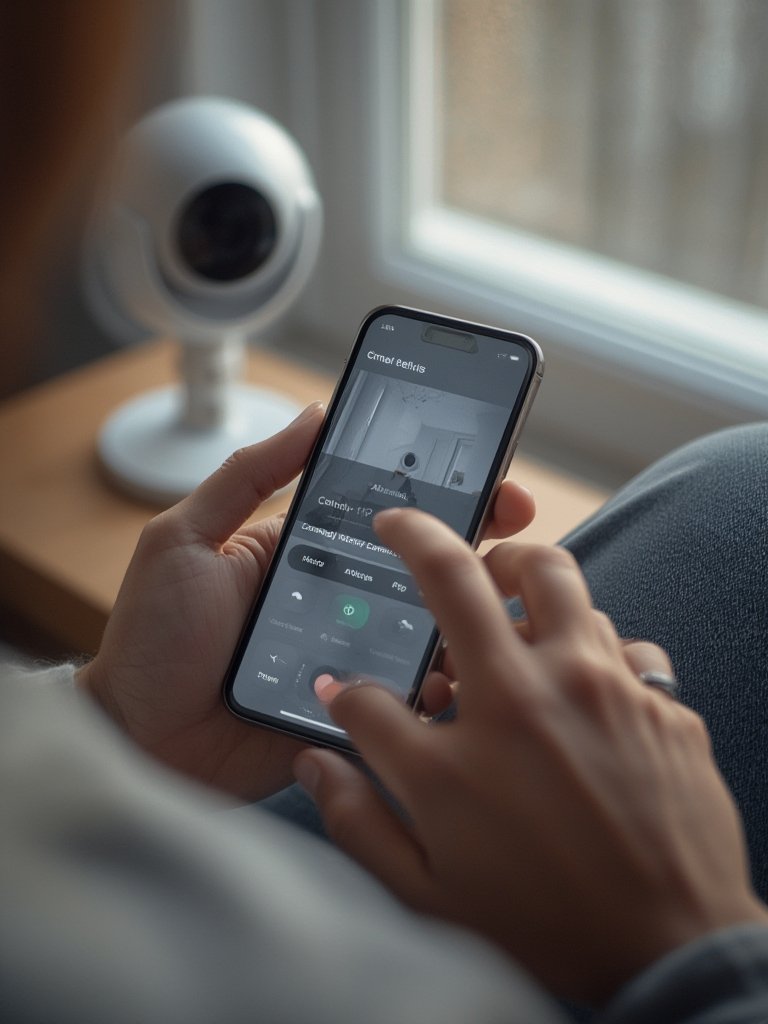
The Blink home security app is designed to make affordable whole-home security accessible to anyone. Unlike some competitors who require hardwired installation or expensive contracts, Blink leverages wire-free, battery-powered cameras and deep integration with Amazon Alexa for an experience most homeowners can set up in an afternoon. The Blink Home Monitor app allows you to view live video, set up instant motion alerts, define privacy zones, and manage cloud-based storage all from your phone.

Blink’s highest-ranked devices—like the Outdoor 4 or the Mini 2—work seamlessly with the app, enabling up to 2 years of battery life, color night vision, and even built-in spotlights. This makes them a top choice for renters, families, and small business owners who want reliable, instant control without technical headaches or high ongoing fees.
While precise market share isn’t disclosed, Blink consistently places in the top downloaded smart home security apps in the US, and sits among the biggest names using Amazon’s 200M-plus Prime user base for rapid growth. For a deeper look at smart home security trends, see this industry outlook.
Step-by-Step Guide: How to Set Up and Get the Most from the Blink App
Setting up the Blink home security app can be straightforward, but missing a few small steps leaves many new users stuck. Here’s a practical walkthrough:
- Download the Blink Home Monitor app. Use the Apple App Store or Google Play. Check device compatibility: Blink recommends iOS 14 or higher and Android 6.0 or higher, with at least 2 GB RAM for best results.
- Unbox your Blink Camera(s) and Sync Module. For most cameras—including the Outdoor 4 or Mini 2—you’ll need AA lithium batteries (supplied), plus a USB power supply for plug-in devices.
- Plug in the Sync Module and connect to WiFi. Place the Sync Module near your WiFi router and plug it into power. In the app, follow prompts to add the Sync Module, connect to its WiFi, then choose your home network.
- Add Cameras using the app. Scan the camera’s QR code in-app, pop in the batteries (for wire-free models), and follow instructions to connect each device to your system.
- Name your cameras and test connections. This helps you identify which camera is where—especially outdoors or in multi-level homes.
- Set motion zones and privacy areas. In the app, use the edit tools to define regions you want alerts from—and those you want to ignore, like busy roads or tree branches.
- Customize notifications and schedule arming/disarming times. Tailor alert volume or push settings so you don’t miss real events but aren’t overwhelmed by false alarms.
- Integrate with Amazon Alexa (optional). Link your Blink account with Alexa for voice control, live views, and more.
- Activate your free 30-day trial of Blink Subscription. This unlocks cloud video storage, person detection, and longer live view sessions. Decide before trial’s end if you want to continue; the exact subscription price can vary and is not always made clear until sign-up time.
For renters or frequent travelers looking for easy-to-move security gear, our popular guides on solo travel safety tips and the solo female travel kit highlight how Blink, combined with smart door locks or portable alarms, makes a seamless, affordable security bundle.
Need to ensure privacy in new places? Check out the hidden camera detector app guide for extra peace of mind when using Blink away from home.
Advanced Analysis & Common Pitfalls with the Blink App
Despite its popularity, the Blink app isn’t perfect. Here are real issues users face—plus straightforward solutions.
- Missed notifications or unreliable alerts: Some users report that motion alerts don’t always fire, especially if notification permissions are off or devices are placed far from the WiFi router. Setting customized zones and regularly updating device firmware helps.
- App setup stumbles: Lack of detailed hardware specs or compatibility tables can lead to wasted time—especially if using an older device or slower WiFi. (Hint: Always check app minimums before buying.)
- Subscription confusion: The 30-day free trial feels generous, but exact pricing for long-term cloud storage or advanced detection can be unclear until you’re about to pay. Always read the terms and check for updates on Blink’s official pages.
- Integrating non-Blink devices: Unlike some rivals (like Agentic AI solutions or Arlo), Blink doesn’t support third-party cameras within its app, limiting mixed-system setups. For broader smart home safety, see our comparison of Agentic AI safety apps.
- Amazon-centric ecosystem: Integration with Amazon Alexa is smooth, but if you’re a heavy Google Home user, expect some limitations. Blink prioritizes the Amazon ecosystem for maximum compatibility.
| Feature | Blink Home Security App | Ring App | Arlo App |
|---|---|---|---|
| Setup | Wire-free, app-guided, takes ~10 minutes per device | Mix of wired & wireless, more complex for doorbells | Requires subscription for most features, setup less intuitive |
| Notifications | Custom motion/zone alerts, sometimes delayed | Reliable but can be spammy | Advanced detection, faster response time |
| Cloud Storage | 30-day free trial, unclear post-trial fees | Requires monthly subscription | Requires subscription from day 1 |
| Smart Integration | Alexa only | Alexa and more 3rd party integrations | Works with Google Assistant/IFTTT |
| Hardware | Affordable, wire-free battery cameras (Outdoor 4, Mini 2) | Expensive, mix of battery and wired devices | Premium pricing, advanced camera options |
| Privacy Zones | Yes | Yes | Yes |
The app’s major strength remains low-maintenance wireless hardware with easy control. But be aware: advanced features, robust third-party integrations, and precise pricing info often remain out of reach until after setup. Before you decide, read more on the market context for Blink and competitors or explore trending options in the connected self defense space for active personal protection choices.
Conclusion: Is Blink the Right Choice?
The Blink home security app stands out for affordable, wire-free security and rock-solid Amazon Alexa integration—especially for users already invested in the Amazon ecosystem. If you want plug-and-play home monitoring without a steep learning curve, it’s hard to beat.
However, be prepared for some ambiguity with long-term subscription costs and know that technical support is primarily online. For most homeowners, renters, or travelers seeking simple yet powerful remote control, the Blink home security app offers one of 2024’s best blends of value and convenience. To get started, download Blink on your device or review your home’s WiFi and device compatibility today.
Frequently Asked Questions
What devices are required to use the Blink home security app?
You’ll need at least one Blink camera (such as Outdoor 4 or Mini 2), AA lithium batteries for battery-powered models, a Sync Module (usually included), a home WiFi network, and a smartphone or tablet with iOS 14/Android 6 or higher.
Is there a monthly fee for the Blink home security app?
The app itself is free to use with local device storage, but premium features like cloud storage and person detection require a Blink Subscription after your 30-day free trial. Pricing specifics may vary by region and device bundles—be sure to review subscription details during app setup.
How reliable are motion alerts with Blink?
Blink’s customizable motion zones help reduce false alarms, but reliability depends on camera placement, good WiFi signal, and keeping the app updated. Some users report missed notifications if notification permissions aren’t enabled or if cameras are too far from the router.
Can Blink cameras integrate with Google Home or other smart assistants?
Blink is primarily designed for Amazon Alexa integration. Official Google Home support is limited, so if multi-platform control is important, consider more open systems or explore Agentic AI safety apps for broader compatibility.
Where can I find a hidden camera when staying in new locations?
Blink is great for security monitoring, but if you’re worried about privacy in hotels or rentals, check the best hidden camera detector app guide for step-by-step detection advice.